Save to Favourites in Chrome, Edge & iPad: The Complete Step-by-Step Guide
You found a page you want to revisit, but a week later it’s buried under fifty open tabs and gone forever. Retyping URLs from memory wastes time, and half of them never quite come back to you. The fix takes less than five seconds: learning how to save to favourites properly, in whichever browser or device you use, means that page is one click away for good.
This guide covers every major way to save favourites in Chrome, Edge, and Safari on iPad, plus keyboard shortcuts and what to do when your saved favourites disappear.
Favourites vs. Bookmarks – Are They the Same Thing?
Mostly, yes. “Favourites” and “bookmarks” refer to the same basic idea: a saved shortcut to a webpage you want to find again. The terminology just varies by browser. Microsoft Edge and Apple’s Safari call them favourites. Google Chrome and Mozilla Firefox call them bookmarks.
There’s one small distinction worth knowing: in Safari, “Favourites” is technically a specific folder inside your broader bookmarks collection the sites that show up on your Start Page and in address bar suggestions. Every other bookmark you save still exists, just not in that featured spot. Keep this in mind if you’re ever searching for a saved page and can’t find it where you expect.
How to Save Favourites in Google Chrome
Chrome makes this simple, and there are two ways to do it depending on how fast you want to work. You can also explore more technology guides and updates on Loviza Pro
Method 1: Using the star icon
- Open the webpage you want to save.
- Click the star icon on the right side of the address bar.
- Choose a folder (or leave it in the default Bookmarks Bar).
- Click Done.
Method 2: Using the keyboard shortcut, press Ctrl+D (Windows/Linux) or Cmd+D (Mac) while on any page to save it instantly.
Once saved, your favourites live in Chrome’s Bookmarks Bar (if enabled) or in the full Bookmark Manager, which you can open with Ctrl+Shift+O (Windows/Linux) or Option+Cmd+B (Mac). From there, you can organize saved pages into folders, rename them, or delete ones you no longer need.
If you don’t see a Bookmarks Bar under your address bar at all, go to Chrome’s menu, hover over Bookmarks, and toggle on Show Bookmarks Bar. This is one of the most common reasons people think saving to favourites “isn’t working” when it actually is.
How to Save Favourites in Microsoft Edge
Edge uses the term “favourites” directly, and the process closely mirrors Chrome’s.
- Go to the page you want to save.
- Click the star icon in the address bar (labelled “Add this page to favourites”).
- Rename the favourite if you’d like, and choose which folder to save it in.
- Select Done.
You can also use the same keyboard shortcut as Chrome: Ctrl+D on Windows or Cmd+D on Mac since Edge is built on the same Chromium engine.
To view everything you’ve saved, open Settings and more (the three dots in the top right), then go to Favourites. From here you can create new folders, reorder items by dragging them, or sync your favourites across devices if you’re signed into a Microsoft account useful if you switch between a work laptop and a home PC.
How to Save Favourites on iPad (Safari)
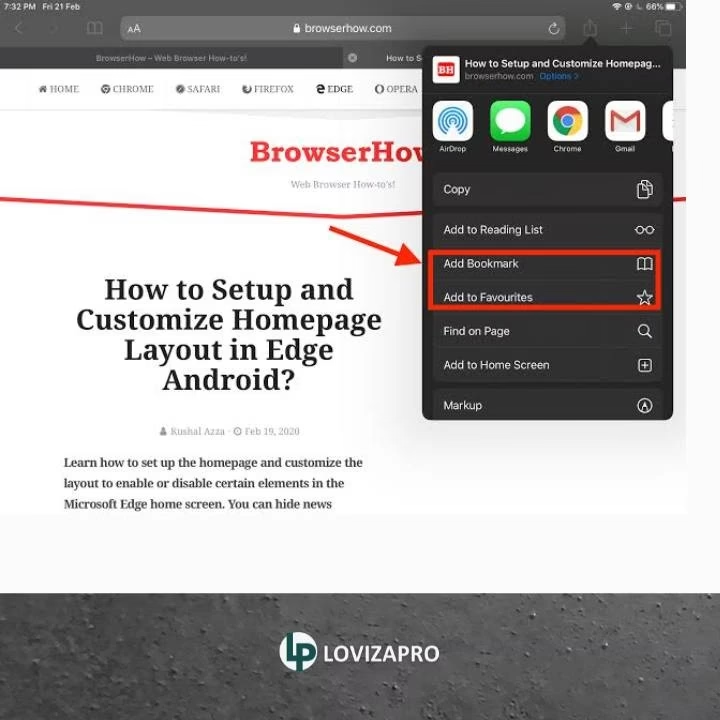
Safari on iPad handles favourites slightly differently since there’s no visible address bar star icon by default. Here’s the tap-by-tap version:
- Open Safari and go to the webpage you want to save.
- Tap the Share icon (the square with an arrow pointing up).
- Scroll down in the share sheet and tap Add to Favourites.
- Rename it if you want a shorter or clearer title, then confirm.
Alternatively, you can tap the search field at the top of the screen and drag down slightly; this reveals an Add to Favourites option directly, without needing to open the Share menu.
To find your saved favourites later, tap the search/address field. Your Favourites will appear automatically above your frequently visited sites. If you want to see them alongside your full bookmark list, tap the Bookmarks icon (it looks like an open book), and look for the Favourites folder near the top.
One iPad-specific detail worth knowing: if you have iCloud enabled for Safari, favourites you save on your iPad will also sync to your iPhone and Mac automatically; you don’t need to save the same page twice on different devices.
Organising Favourites So You Can Actually Find Them Later
Saving a page is only half the job. If everything lands in one long, unsorted list, you’ll end up scrolling through hundreds of entries to find the one you need, which defeats the purpose. A little structure goes a long way.
Create folders by topic, not by date
“Recipes,” “Work Tools,” “Travel Planning,” or “Read Later” hold up much better over time than folders named after the month you saved something. You’ll remember what a page was about long before you remember when you saved it.
Use the Bookmarks/Favourites Bar for your top 5–10 sites only
This bar has limited space, so reserve it for pages you open daily: email, your calendar, a project dashboard. Everything else belongs in folders accessible through the manager.
Rename vague titles
Many pages save with long, unhelpful titles pulled straight from their page title, like “Home | Product Overview | Company Name Official Site.” When you save a page in Chrome, Edge, or Safari, you’re given the chance to rename it. Take the extra two seconds to write something you’ll actually recognise at a glance.
Review and prune occasionally
Favourites lists tend to grow indefinitely unless you clean them out. Every few months, skim through folders and delete pages you no longer visit dead links, outdated deals, or projects you’ve already finished.
Saving Favourites on Mobile vs. Desktop
The core action tap or click, then confirm is the same everywhere, but there are a few differences worth knowing if you switch between devices.
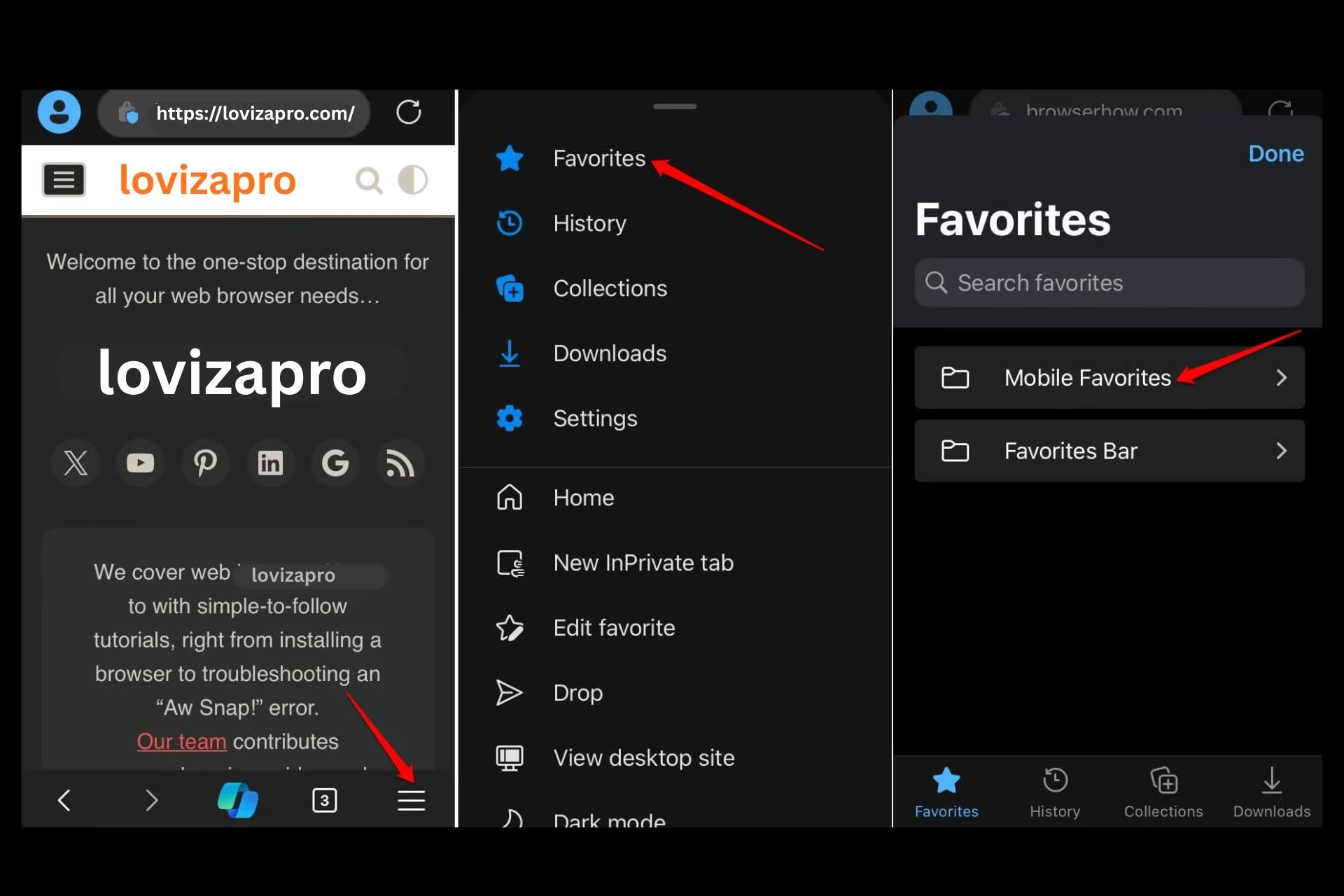
On Chrome for Android or iPhone, tap the three-dot menu and select the star icon, rather than looking for a star in the address bar the way you would on desktop. On Edge mobile, the process is nearly identical: tap the menu, then the favourites star.
The advantage of mobile saving is that, as long as you’re signe into the same account you use on desktop, everything syncs automatically. Save an article on your phone during a commute, and it will already be sitting in your Bookmarks Bar by the time you’re back at your laptop. Useful for research, shopping comparisons, or saving things to view later on a bigger screen.
Quick Reference: Keyboard Shortcuts by Browser
| Browser | Windows/Linux Shortcut | Mac Shortcut |
| Google Chrome | Ctrl+D | Cmd+D |
| Microsoft Edge | Ctrl+D | Cmd+D |
| Safari (Mac) | — | Cmd+D |
| Safari (iPad) | Tap Share → Add to Favourites | Tap Share → Add to Favourites |
These shortcuts save a few seconds each time, but they add up fast if you bookmark pages often for research, shopping comparisons, or reference material you check regularly.
Favourites Not Saving or Showing Up? Here’s What to Check
If you’ve clicked the star icon or used the shortcut and your favourite still isn’t appearing where you expect, it’s usually one of these issues rather than a broken browser:
- The Bookmarks/Favourites Bar is hidden. In Chrome, check Bookmarks > Show Bookmarks Bar. In Edge, check Favourites > Show favourites bar. This is by far the most common cause of “my favourites disappeared”: they were saved correctly, just to a bar you can’t see.
- You’re saving it to a different folder than you’re looking in. If you’ve organised favourites into subfolders, a new save might land in the last-used folder rather than the top level.
- Sync isn’t turned on (or hasn’t finished). If a favourite save on your phone isn’t showing on your laptop, check that you’re signed into the same Google, Microsoft, or Apple account on both devices, and that sync is enabled in settings.
- You’re in an Incognito or Private window. Chrome and Edge don’t save bookmarks made in private browsing sessions to your regular list in some configurations — check by opening a normal window.
- Browser storage or profile corruption. Rare, but if none of the above fixes it, try restarting the browser or checking whether a different browser profile has your favourites instead.
If your favourites vanished after an update, don’t panic before checking sync status — most “lost” favourites are actually just synced to a different device or hidden behind a toggled-off bar, not permanently delete.
It’s also worth checking whether a browser extension is interfering. Ad blockers, privacy tools, and some productivity extensions occasionally modify how the address bar or bookmark icons behave. If favourites stop saving right after installing something new, try disabling extensions one at a time to isolate the cause before assuming the browser itself is broken.
Frequently Asked Questions
Is there a difference between “save to favourites” and “bookmark a page”?
Functionally, no both actions save a shortcut to a page for later. The word used just depends on which browser you’re in (Chrome and Firefox say bookmarks; Edge and Safari say favourites).
Can I save favourites without an internet connection?
Yes. Saving a page to favourites only stores the link and title locally (or to your synced account) it doesn’t require an active connection at the moment you save it, though the page itself needs to have loaded first.
How many favourites can I save?
There’s no practical limit for casual use. Browsers can typically handle thousands of saved bookmarks, though very large lists may load more slowly in the bookmark manager.
Can I export my favourites to use in a different browser?
Yes, all major browsers let you export favourites as an HTML file through their bookmark manager, which you can then import into another browser.
Why did my favourites disappear after switching phones or laptops?
This almost always means sync wasn’t enabled on the new device, or you’re signed into a different account. Check your sync settings first before assuming anything was deleted. For more information, learn about browser security risks and protection tips.
Should I back up my favourites?
It’s worth doing occasionally, especially if you have a large or carefully organised list. All major browsers let you export favourites to an HTML file from the bookmark manager; keep a copy somewhere outside the browser itself (like cloud storage) so a browser reset or reinstall doesn’t wipe years of saved pages.